

How your brand gets a CRM
You can’t sign up for the CRM yourself. Our team sets it up for your brand. Contact us through Support in your brand dashboard to ask for one.1
We set it up
Our team creates your CRM and links it to your brand, so your muses and shoppers show up in it straight away.
2
Accept ownership
The first person we invite sees a message at the top of the CRM saying we’ve set it up for your organization, and asking them to accept it. Choose Accept to become the owner. The owner can invite the rest of the team and manage the plan.
3
Invite your team
Add everyone who’ll use it. See your team, roles and audit log.
Joining from an invite
When someone invites you, you get an email with a link to your CRM.1
Open the link in the email
It opens a page called CRM invite.
2
Create your team account
If you’re new, fill in your name, phone and a password, then choose Create account & join. If you already have a team account, you’re added straight away. Choose Go to CRM.
3
Bookmark the address
Your CRM has its own web address, made from your organization’s name. It’s the one in your invite email. Bookmark it and sign in there next time.
The CRM uses a separate team account. You can’t join with an email that already has a shopper, muse or brand account. If you see “That email already belongs to a non-staff Outfiqe account and can’t be added as staff.”, ask to be invited with a different email, like a work address.
The Overview page
Every visit starts on Overview. At the top you’ll see your organization’s name and, during your trial, when it ends.- Needs attention today: the things most likely to slip, like overdue tasks. Choose one to go straight to it.
- Quick actions: New contact, New opportunity, New ticket and New task, without leaving the page.
- The figures: sales in progress, open opportunities, won value, open tickets, average time to solve, and tasks due or overdue. Each one opens the page behind it.
- Activity and Sales value by stage: what your team logged over the last 30 days, and where the money in your sales sits.
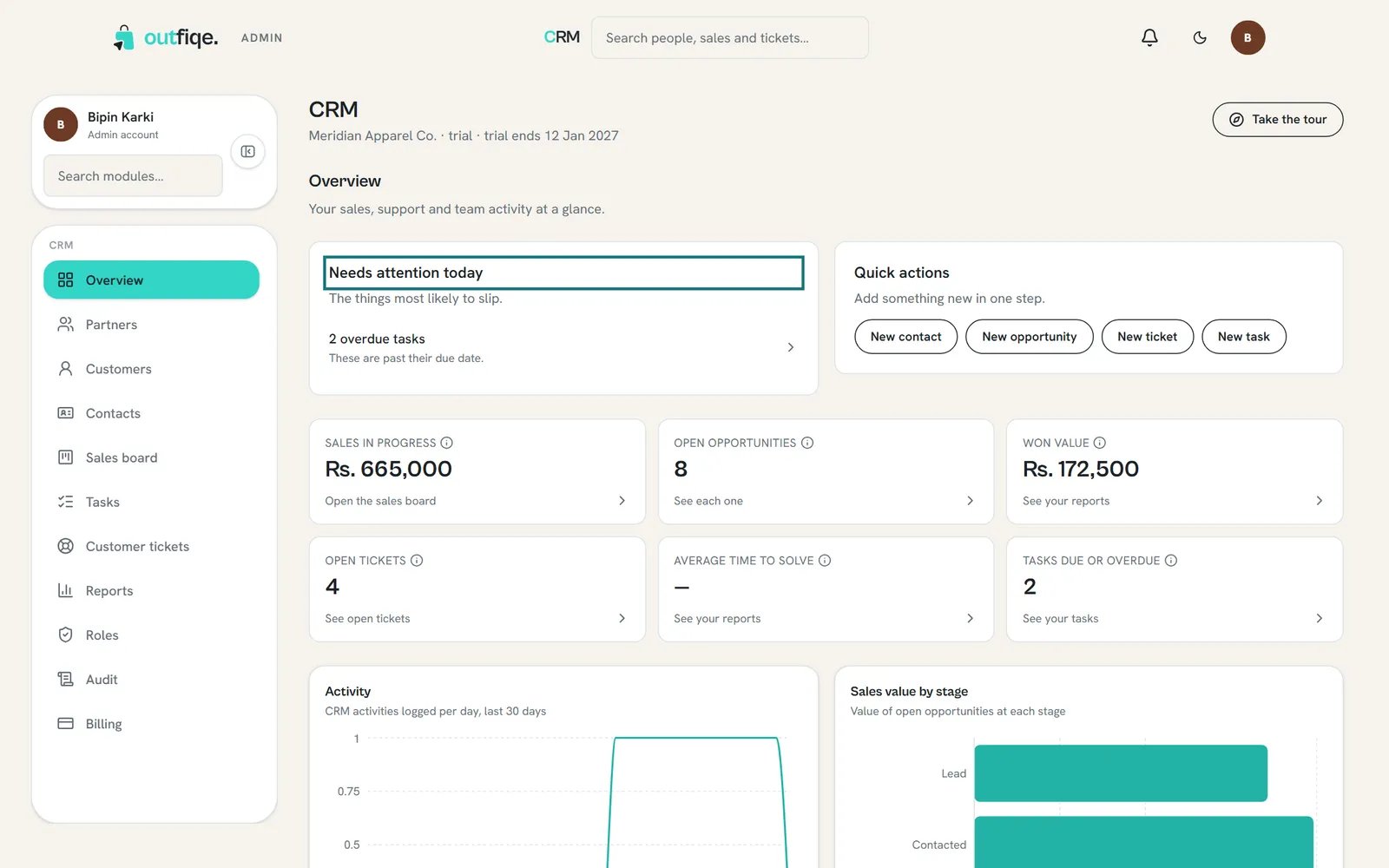
Needs attention today is the first thing to check each morning.
Finding your way around
You only see the pages your role allows. If one is missing, ask the owner or an admin.
Search everything at once
Type in Search people, sales and tickets… at the top of every page. Results are grouped by type, so you can jump straight to a contact, an opportunity or a ticket.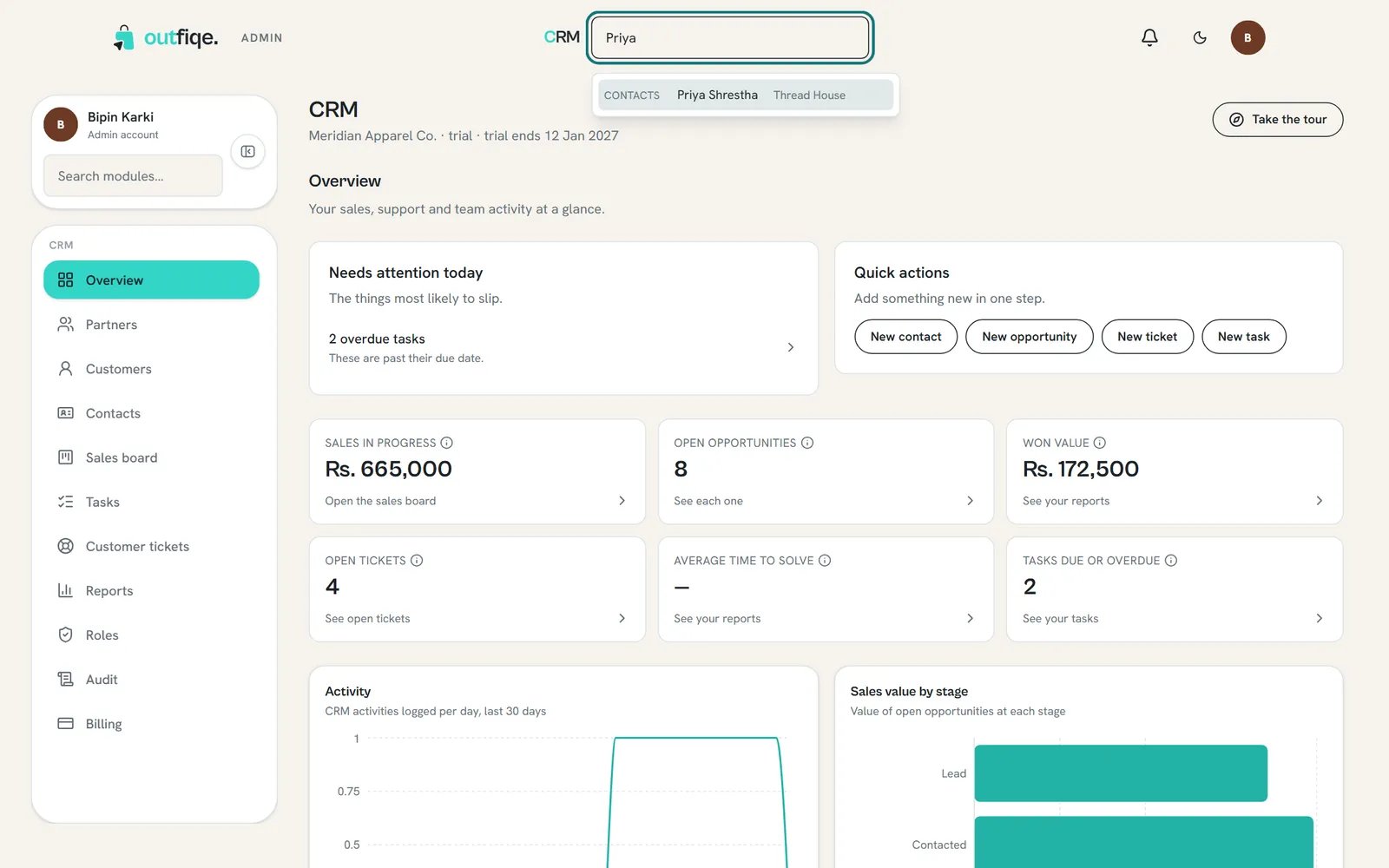
Results show as you type, grouped by type.