

Reading the board
Each column is a stage. The number at the top is how many cards are in it. To start with, the stages are Lead, Contacted, Negotiating, Won and Lost. Each card shows the opportunity’s title, its value, who it’s with, who on your team looks after it, and how long it’s been in this stage.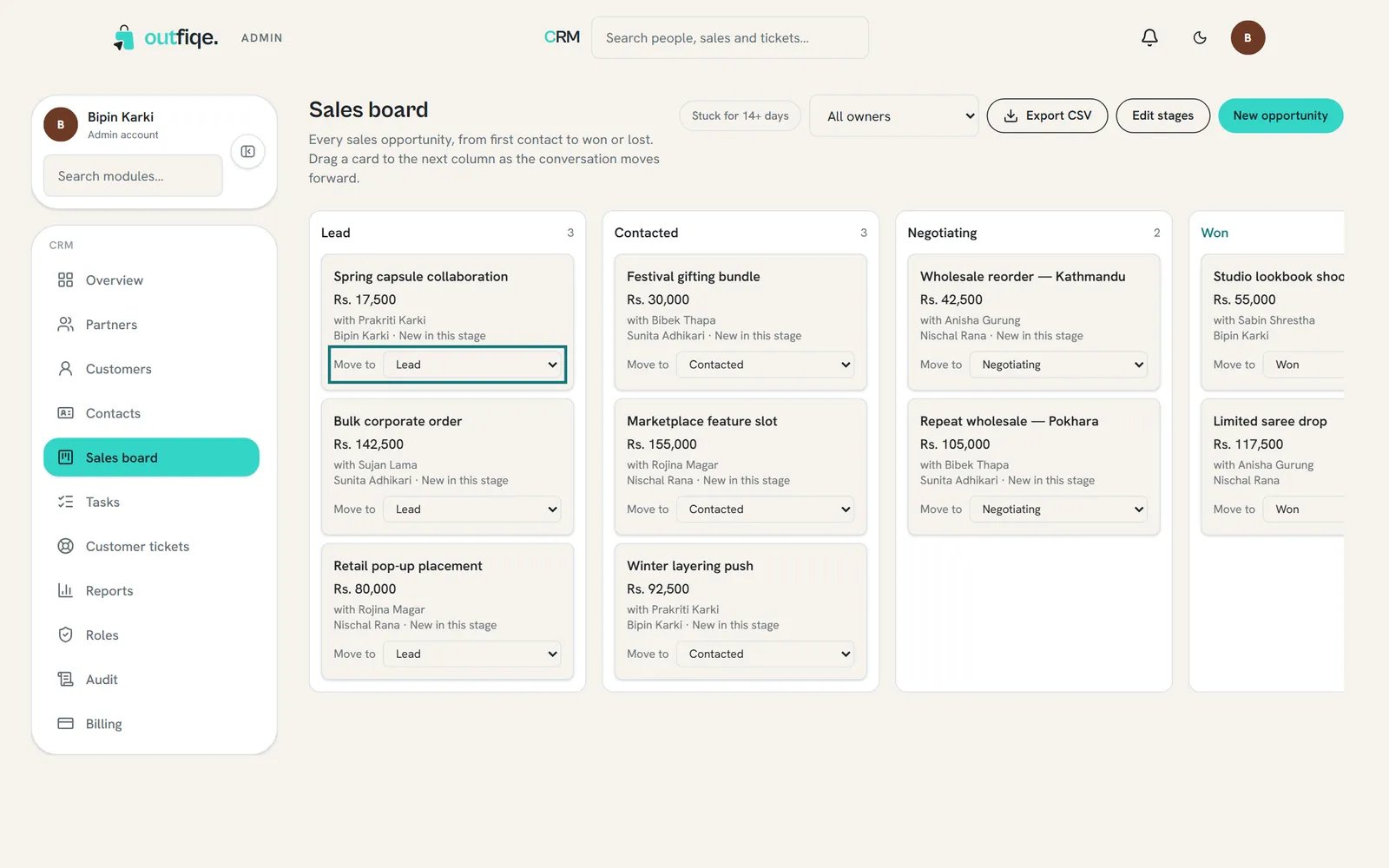
Move a card along as the conversation moves forward.
- Stuck for 14+ days shows only the cards that haven’t moved in two weeks, so nothing goes quiet without anyone noticing.
- All owners narrows the board to one person’s cards.
- Export CSV downloads every opportunity as a spreadsheet.
Add an opportunity
1
Open the form
Choose New opportunity on the board, or from Quick actions on Overview.
2
Fill it in
Give it a Title that says what the sale is, like “Summer linen restock”. Pick the Stage, enter the Value (Rs.) you expect it to be worth, and, if a muse is involved, search for them under Partner.
3
Save
Choose Create opportunity. It appears on the board in the stage you picked.
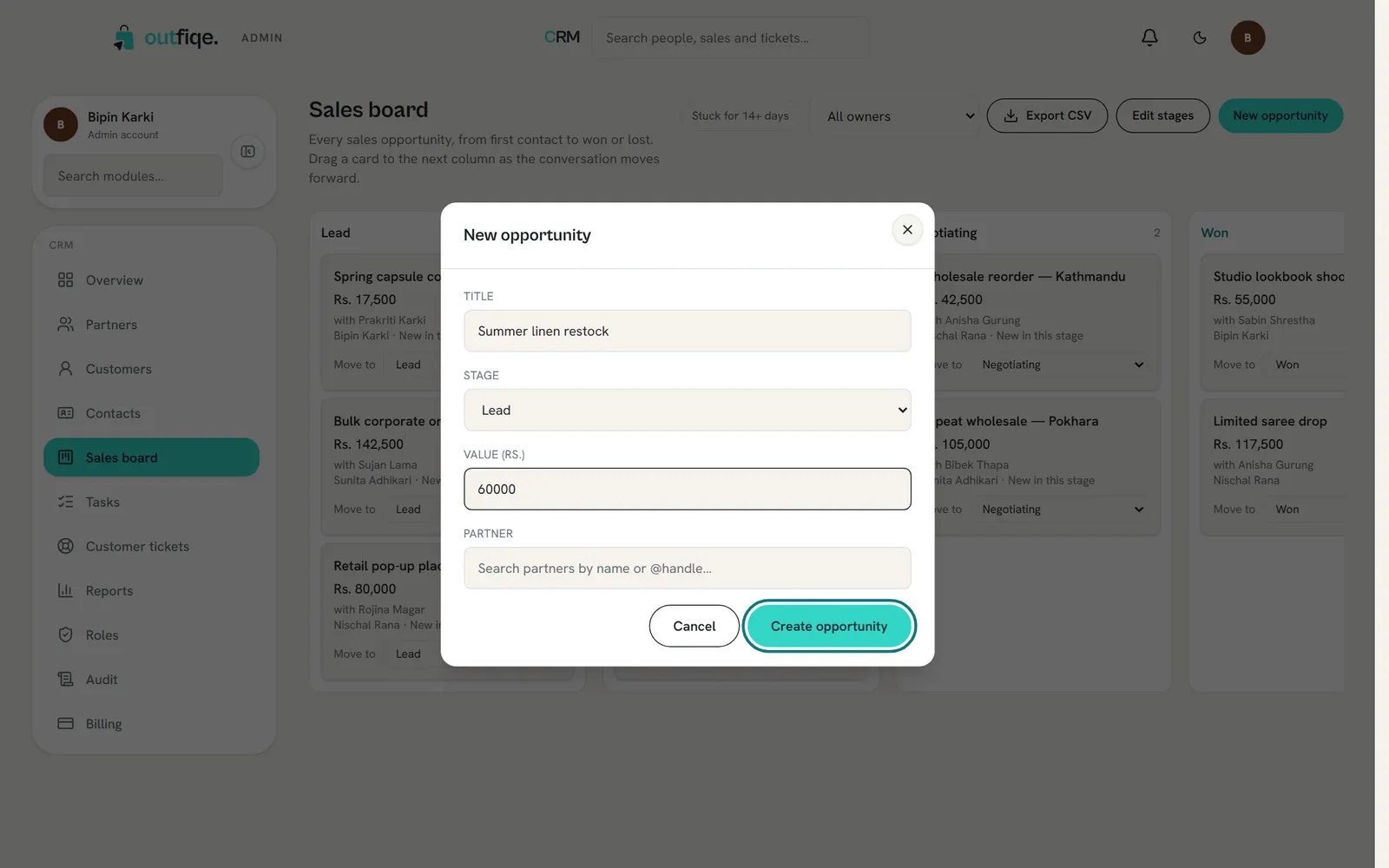
A clear title makes the card easy to find on a busy board.
Move an opportunity along
When the conversation moves forward, move the card. Either drag it into the next column, or pick the stage from Move to on the card. Moving a card to Won or Lost closes it. Won opportunities count towards Won value on Overview and in Reports.Change the stages
If your sales work differently, change the columns to match.1
Open the stage editor
Choose Edit stages at the top of the board.
2
Add, reorder or remove
Type a New stage name and choose Add. Use the arrows to put stages in order, and the cross to remove one.
3
Finish
Choose Done.
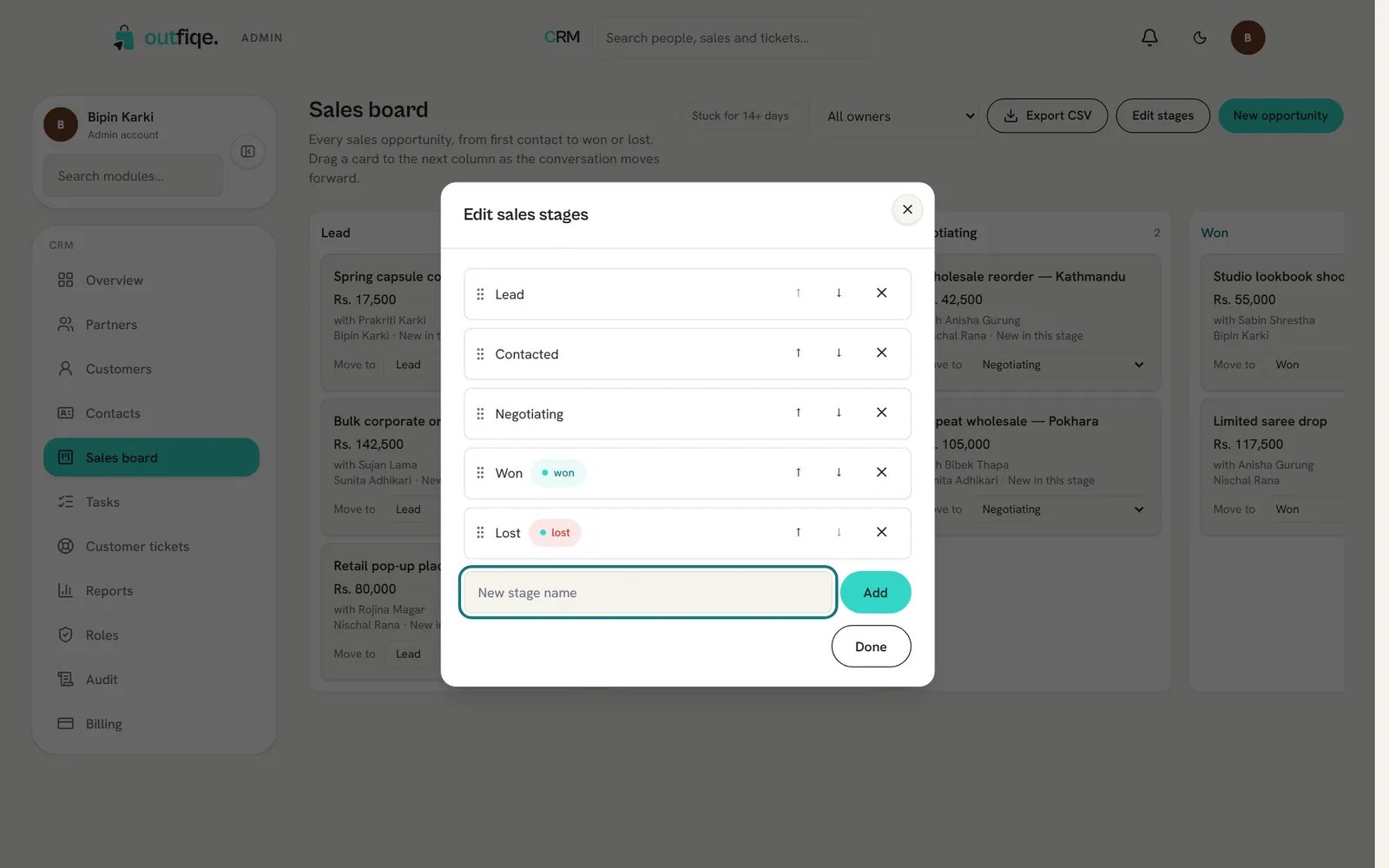
Won and Lost are marked, because they close an opportunity.
An opportunity’s page
Choose a card’s title to open it. About this opportunity shows its stage, the result so far, the expected value, when it’s expected to close, who looks after it, and when it was opened. Choose Edit to change any of these. Below that are the people linked to it, their other opportunities, tickets and open tasks, and the Timeline of calls, messages and notes. See tasks and the timeline.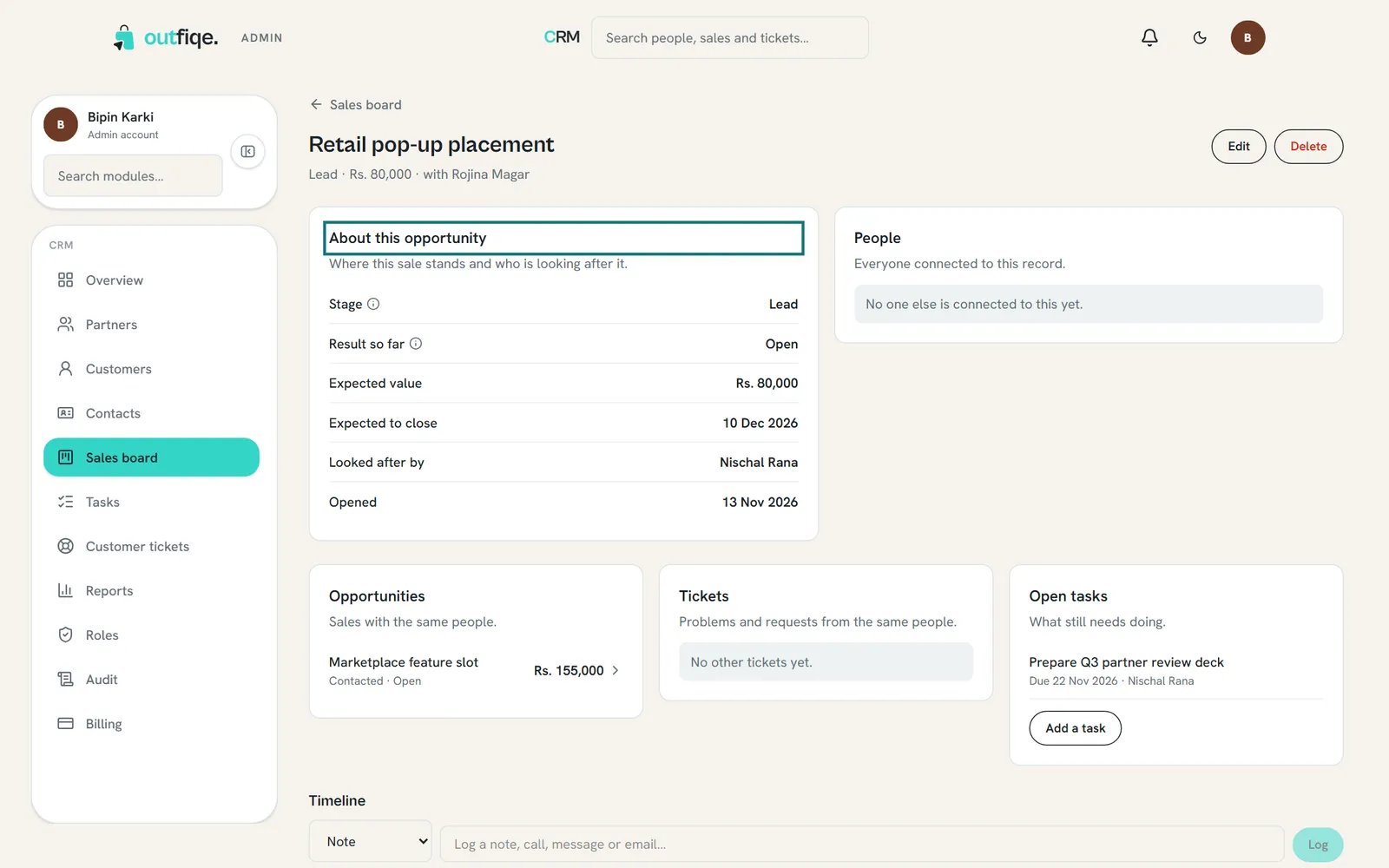
Everything about one sale in one place.