

These tickets are your brand’s own. They’re separate from the support requests you send to Outfiqe. To contact our team, use Support in your brand dashboard.
The ticket list
Customer tickets lists every ticket with its title, its type, who looks after it, when it came in, and its status. Filter the list by status, by person, or by date. Choose a ticket’s title to open it.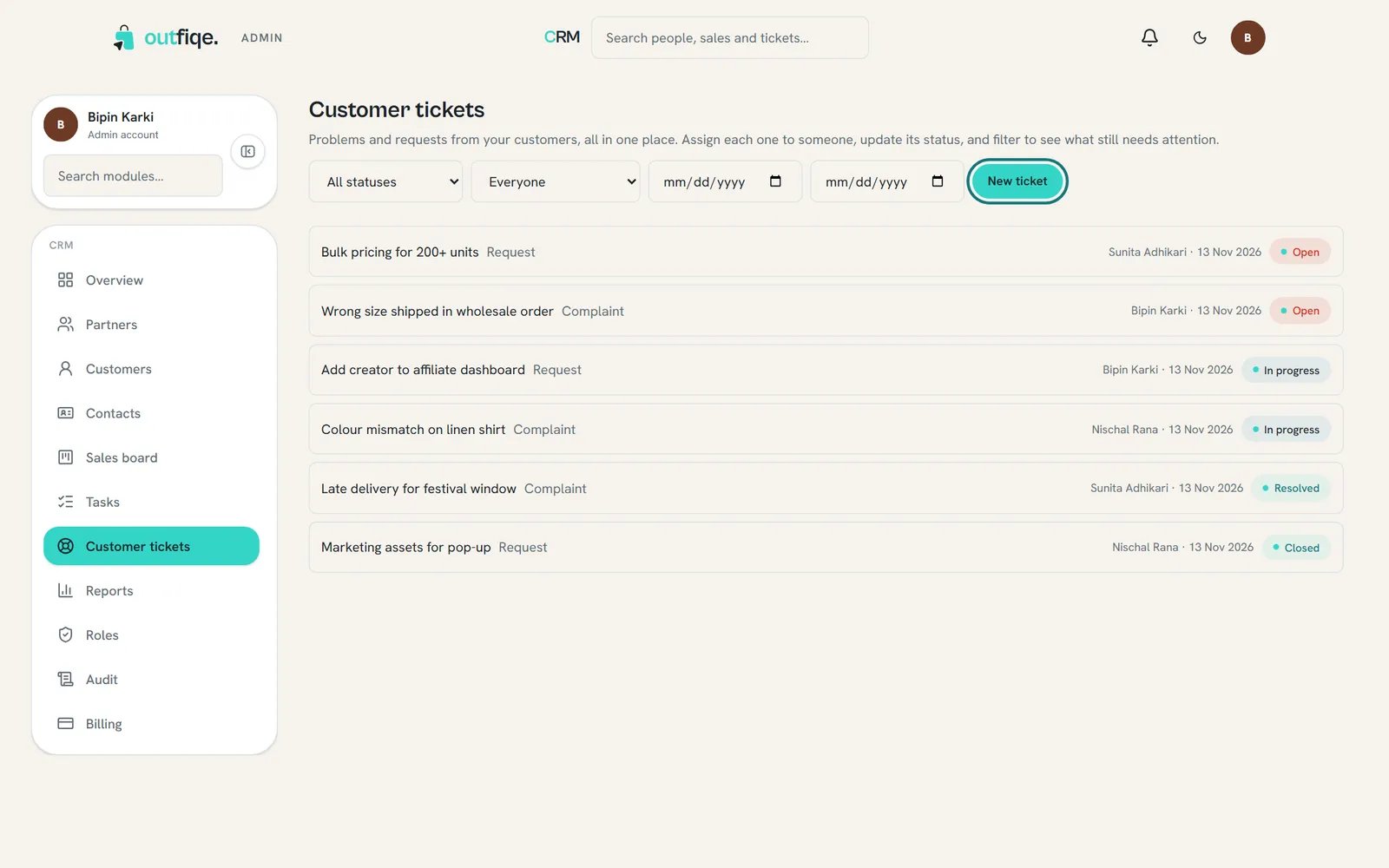
Open tickets need someone to pick them up.
Add a ticket
1
Open the form
Choose New ticket on Customer tickets, or from Quick actions on Overview.
2
Describe it
Pick the Type, like a complaint or a request. Give it a short Title, explain it in Description, and search for the Customer it’s about, if there is one.
3
Save
Choose Create ticket.
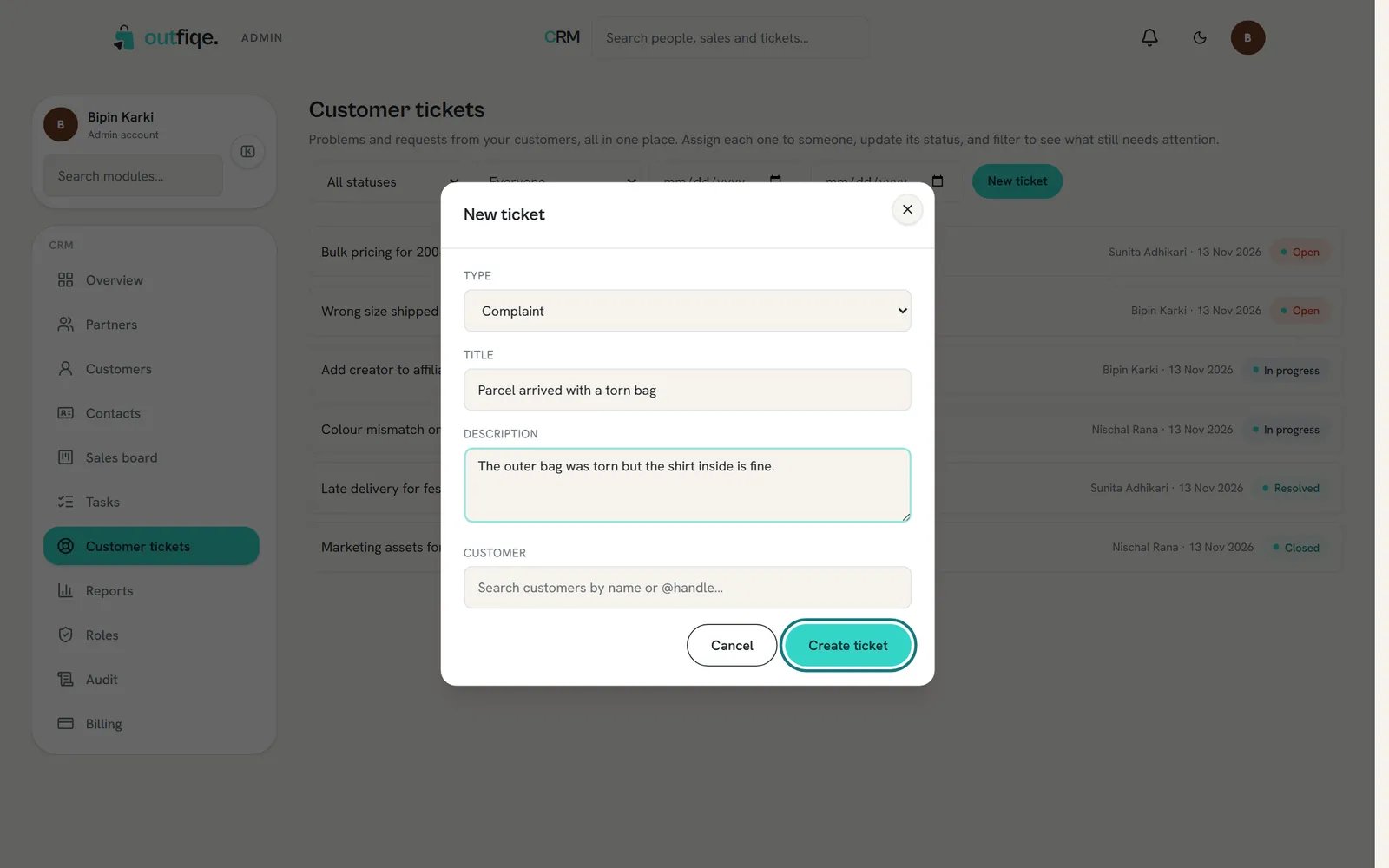
Link the customer, so the ticket shows on their page too.
Work on a ticket
Open a ticket to see What was reported, then use Handling this ticket to move it along.1
Choose who looks after it
Pick someone under Assignee. They can see it’s theirs from the list and from Reports.
2
Keep the status up to date
Choose Open, In progress, Resolved or Closed as the work moves along.
3
Leave notes for your team
Add what you’ve checked or done under Comments, then choose Comment. Comments are for your team only.
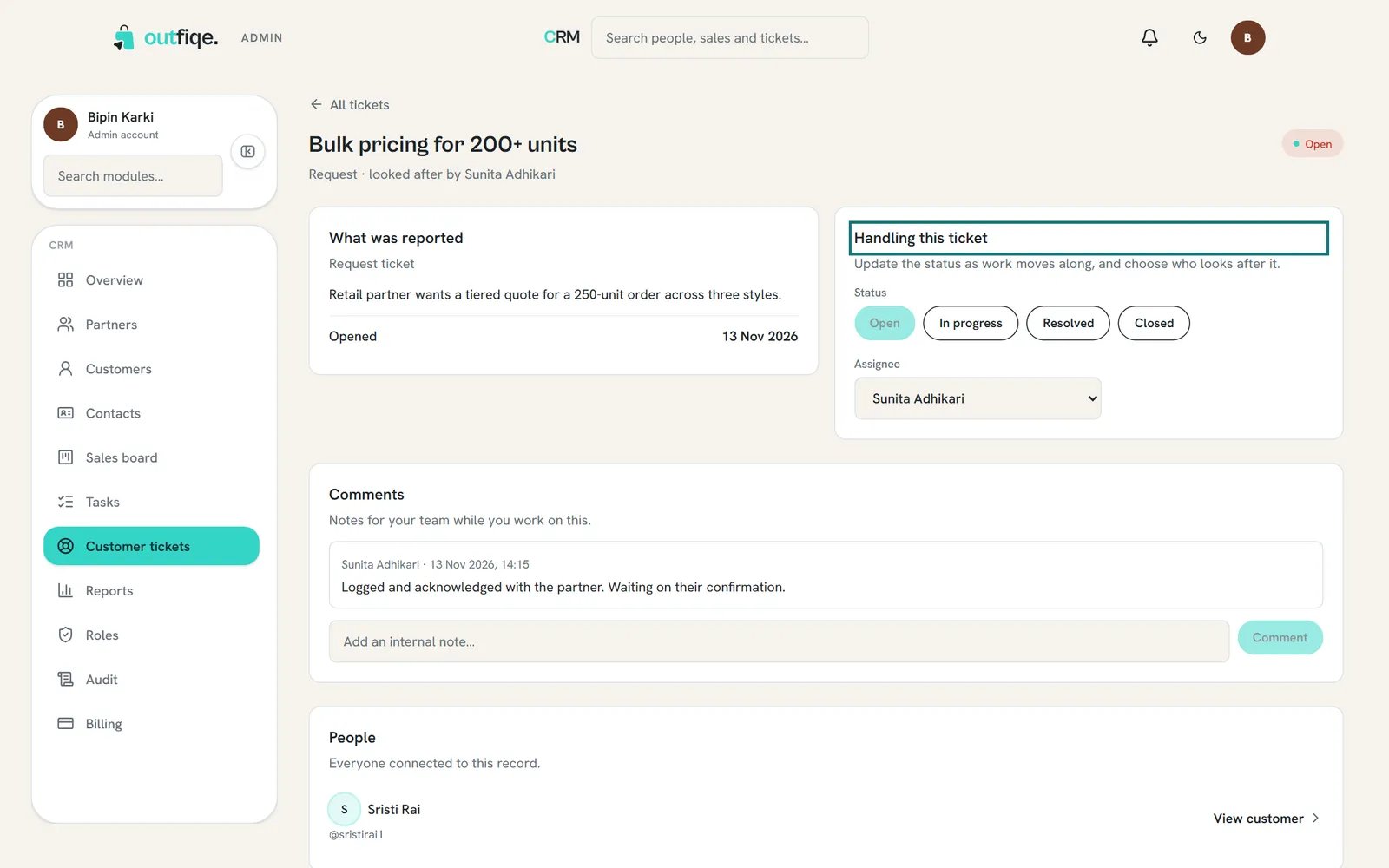
The status and assignee are always in the same place, at the top right.