

Tasks
Tasks lists everything your team has to do, with who it’s for and when it’s due. Overdue tasks are marked overdue in red.- Use All, Overdue, Today and Upcoming to see what matters now.
- Use Everyone to narrow it down to one person’s tasks.
- Tick the box next to a task when it’s done. Finished tasks are crossed out.
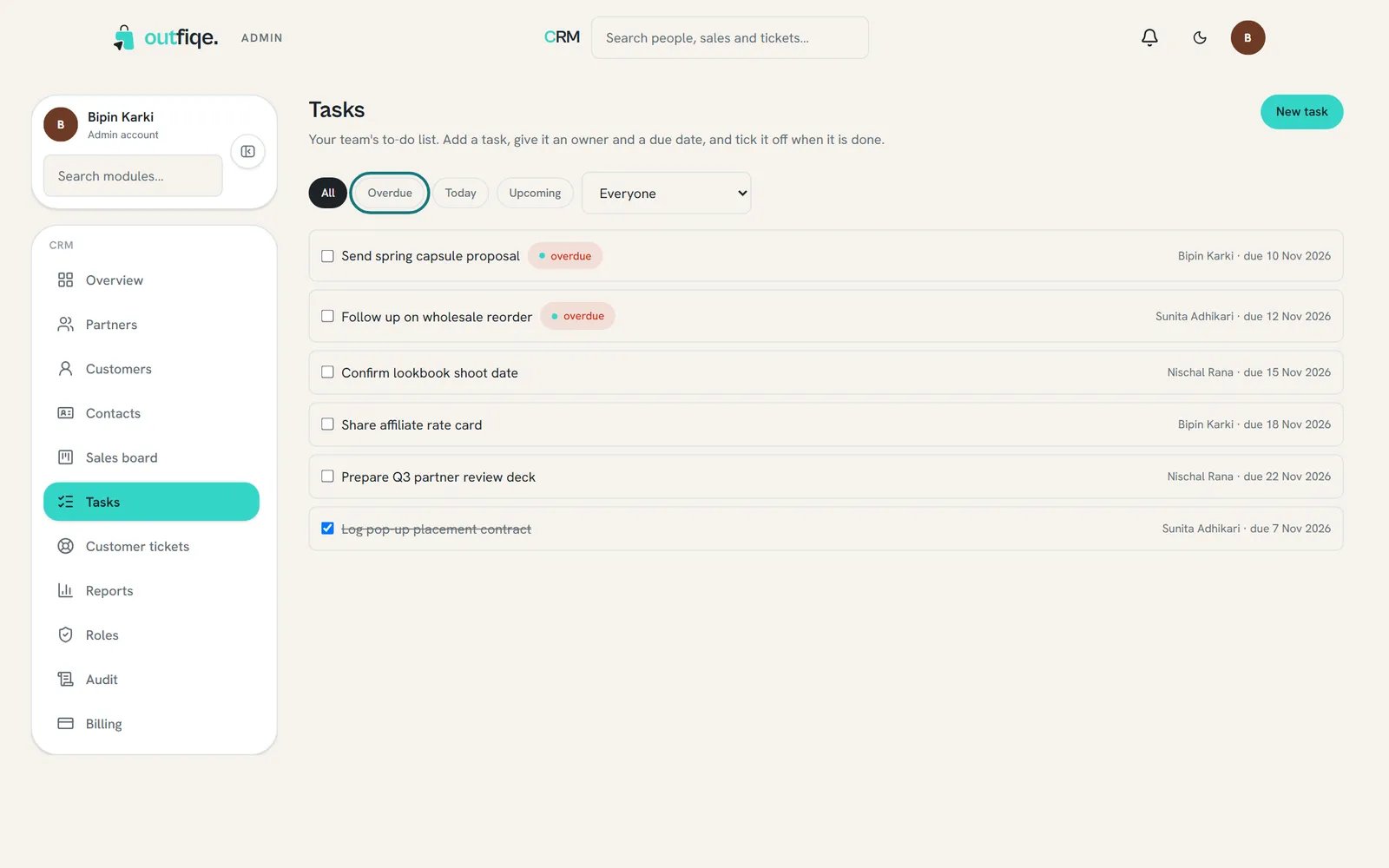
Start with Overdue, then Today.
Add a task
1
Open the form
Choose New task on Tasks, from Quick actions on Overview, or Add a task on any person, opportunity or ticket. A task added from a record is linked to it.
2
Fill it in
Type a Title that says what to do, like “Send the summer price list”. Pick the Assignee and, if it has a deadline, the Due date (optional).
3
Save
Choose Create task.
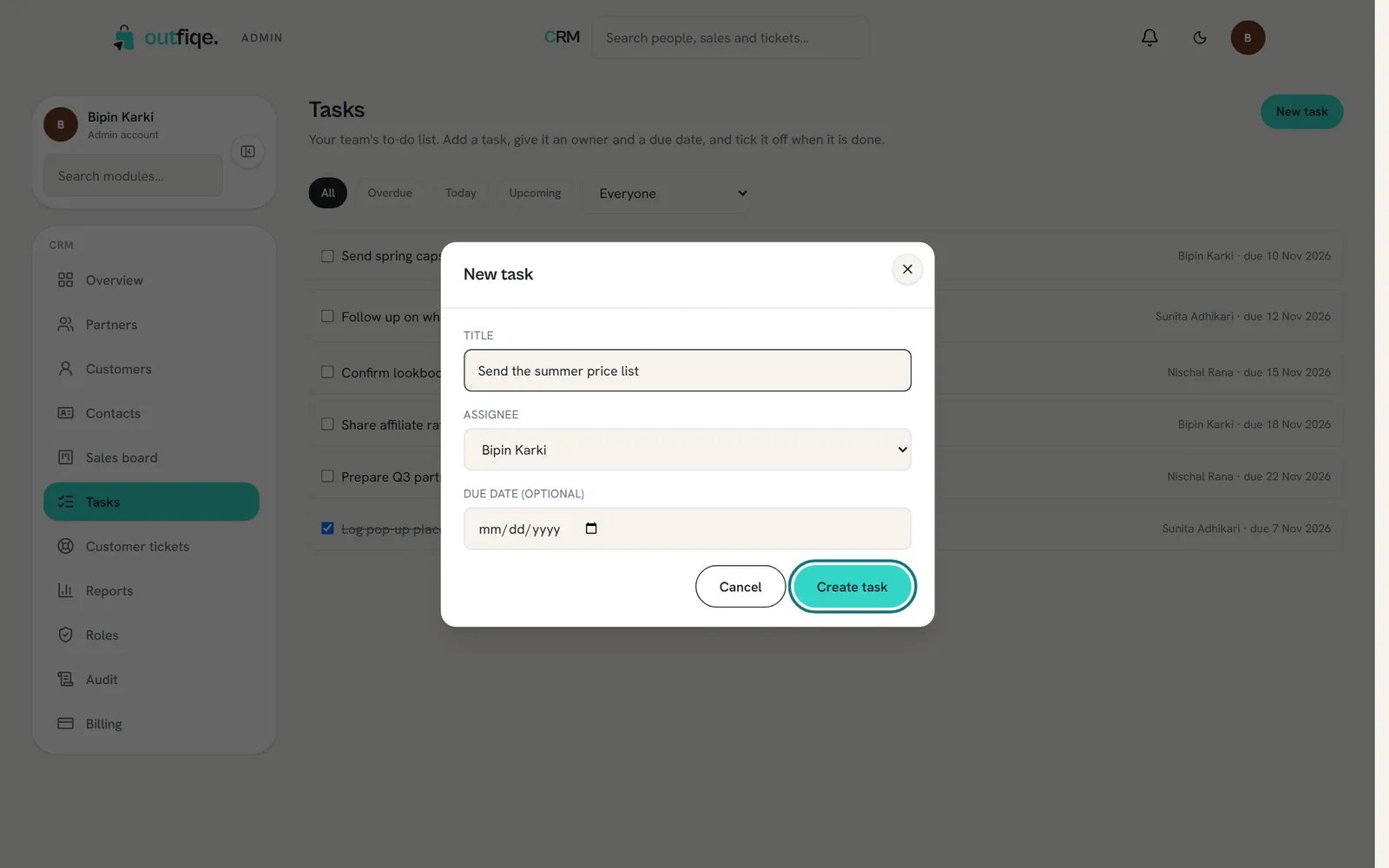
Start the title with a verb, so it's clear what needs doing.
The timeline
Every person, opportunity and ticket has a Timeline at the bottom of its page. It shows what’s happened, newest first, including orders that came in automatically.Log a call, message or note
1
Pick the type
In the menu next to the box, choose Note, Call, Message or Email.
2
Write what happened
Type a short summary in Log a note, call, message or email…. For example, “Called about the spring order. She’ll confirm sizes by Friday.”
3
Save it
Choose Log. It’s added to the top of the timeline, with your name and the time.
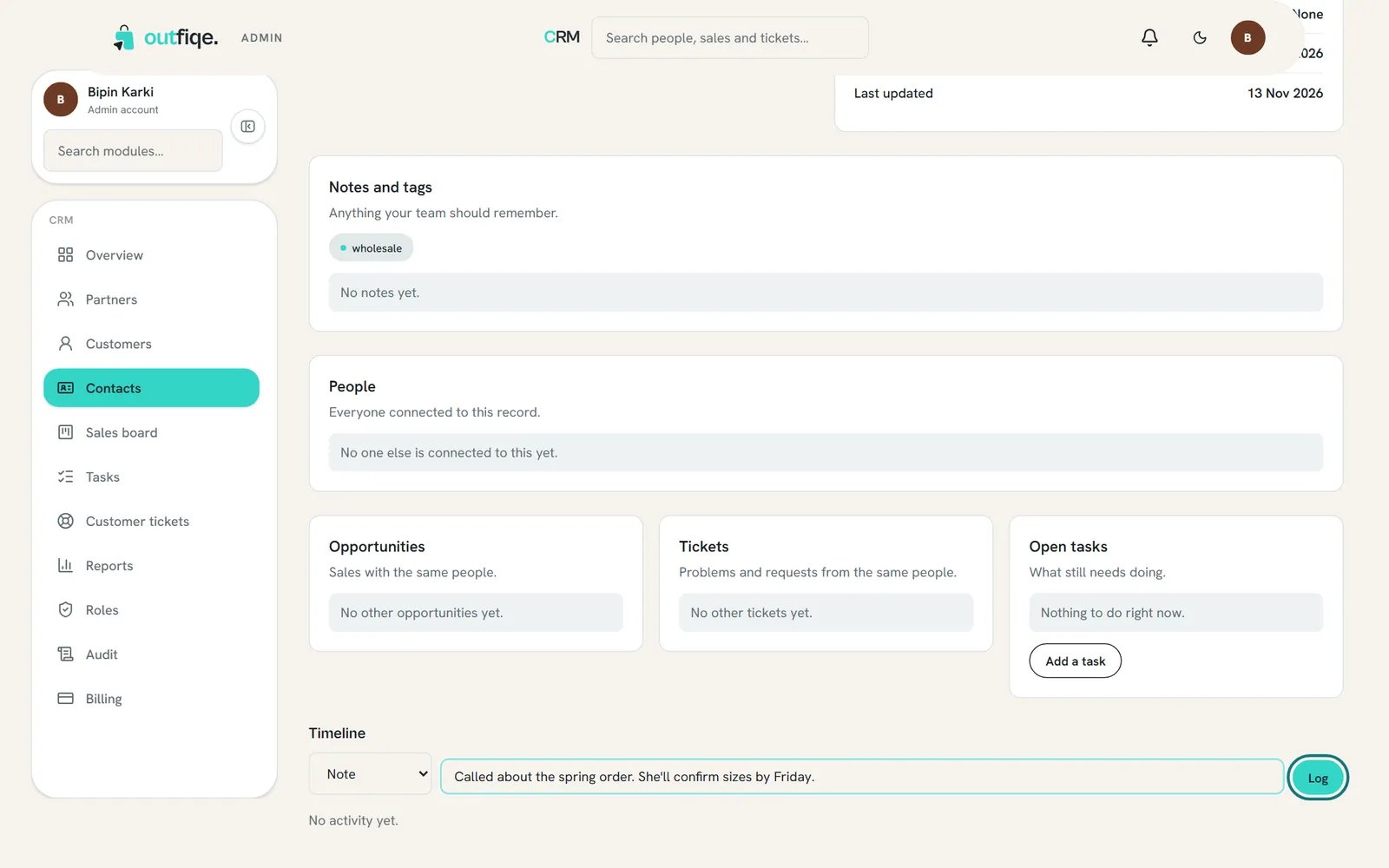
A one-line summary after each call means anyone can pick up where you left off.